Custom Fields\t\t\t\t\t\t\t\t\t\t\t\t\t\t\t\t\t\t\t\t\t\t\t\t\t\t
Entropy CRM understands that every business has unique needs. That's why it offers customization options to tailor the system to your specific workflows. This guide focuses on adding Custom Fields, a powerful tool for capturing additional data relevant to your business.
What are Custom Fields?
The default Lead/Deal pages in Entropy CRM come with essential fields like contact details, organization, owner etc. However, you might need to capture more information specific to your sales process. Custom Fields allow you to do just that.
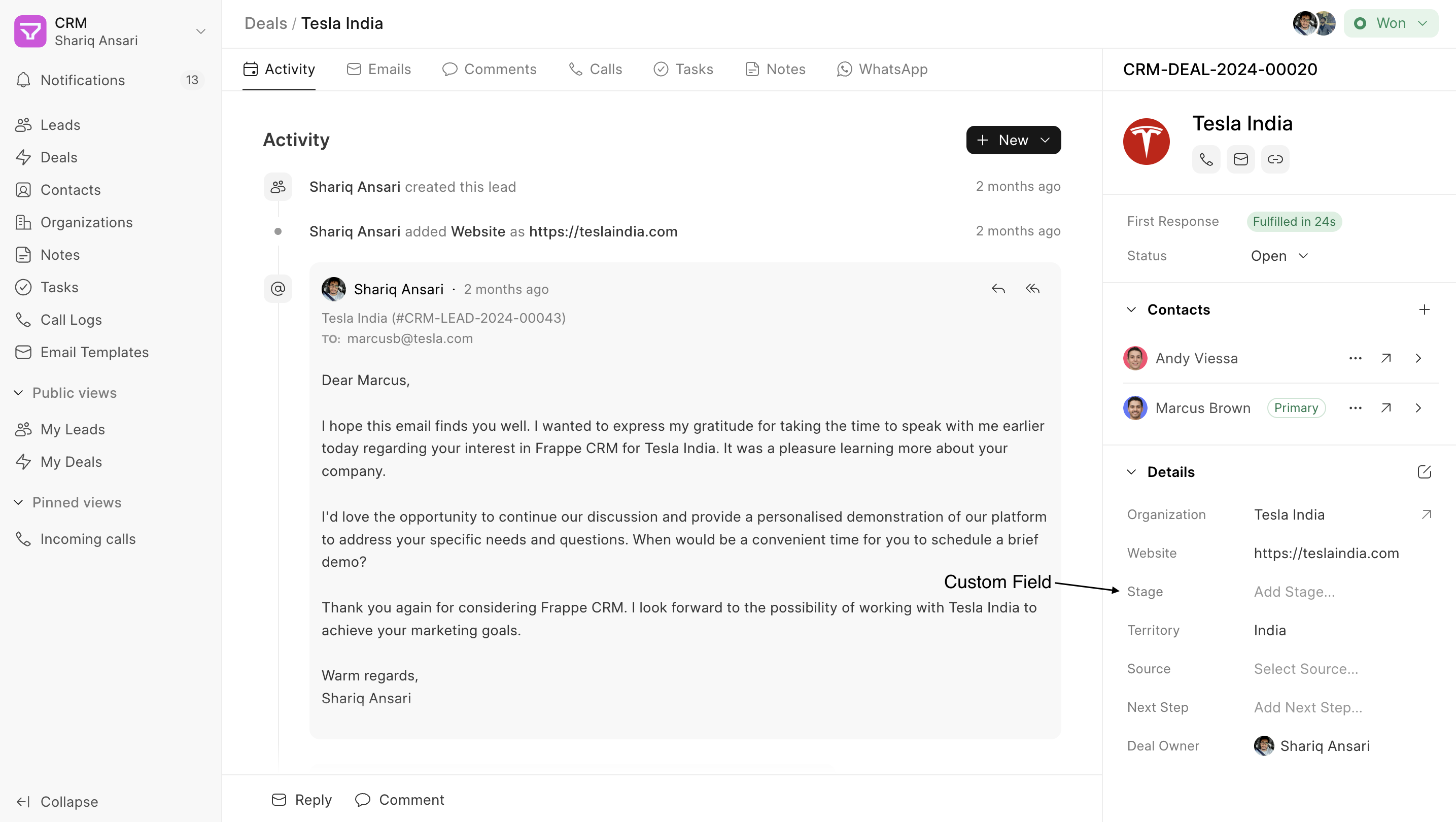
Adding Custom Fields
Here's how to add Custom Fields to Lead or Deal documents using the side panel layout builder:
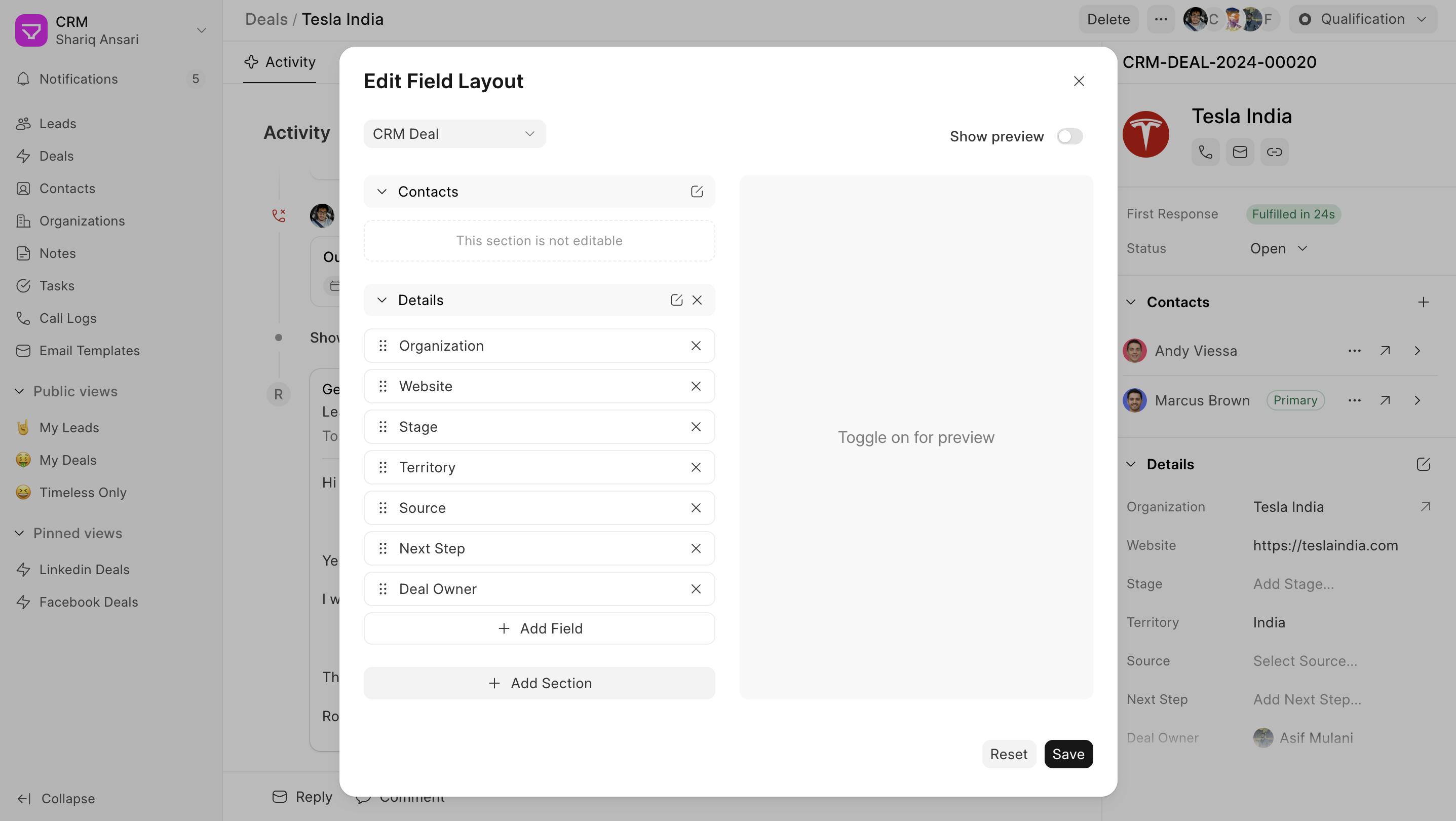
- Navigate to Lead/Deal Page: Go to Lead/Deal Page and click on the edit icon shown on the first section header in the side panel.
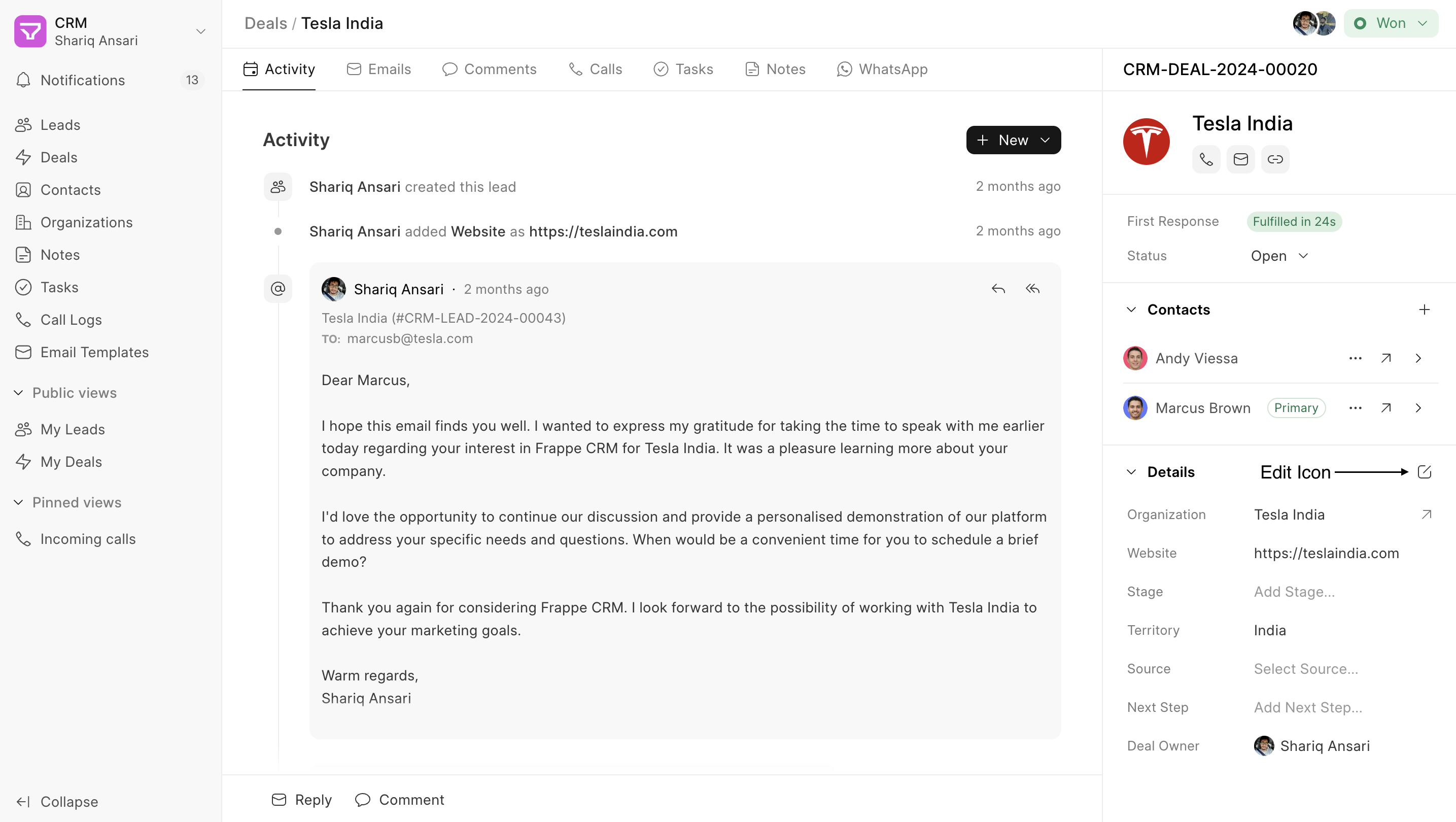
- Use the Fields Layout Builder: A modal will open where doctype will be selected automatically. The right side displays a layout builder. Drag and drop existing fields or sections to rearrange them. Use the buttons provided to add new fields or sections.
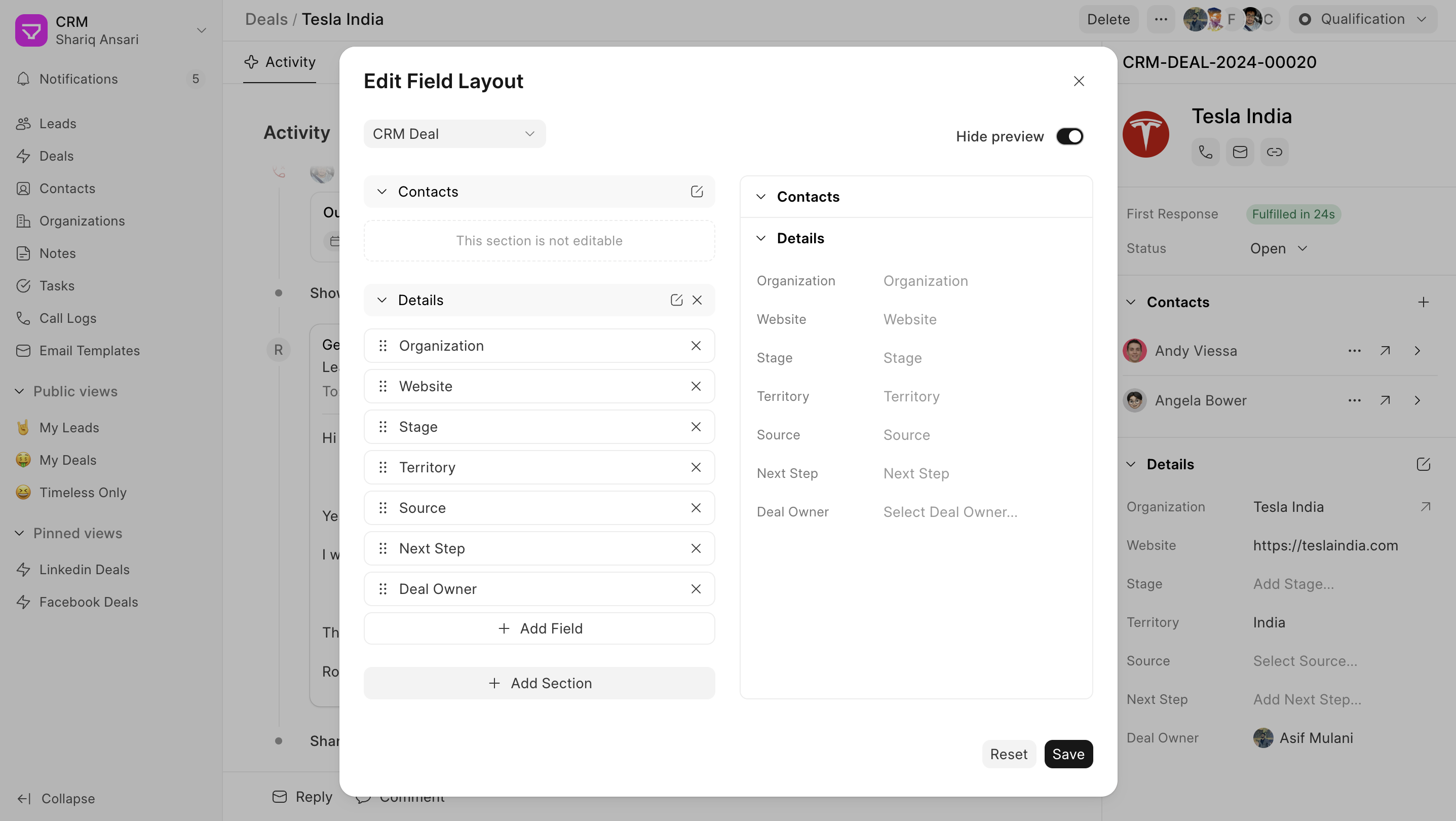
- Preview Your Work (Optional): The Sidebar Fields Layout Builder offers a Show Preview button. Clicking this button will display a preview of how the customized sidebar panel will look for the chosen doctype. This allows you to visualize your layout changes before saving them.
Important Notes:
- You can only edit section labels, not field labels. To edit field properties, use the framework's "Customize Form" feature.
- The "Contacts" section for CRM Deals is non-editable. You can rearrange or rename the section but cannot remove it.
- Currently, not all field types are supported in the new UI. Fields like Rating, Geolocation, and Duration will appear as data fields on the Lead/Deal page.
By effectively utilizing Custom Fields, you can personalize your Entropy CRM experience and capture the data crucial to your sales success.
Entropy CRM Documentation← Docs home